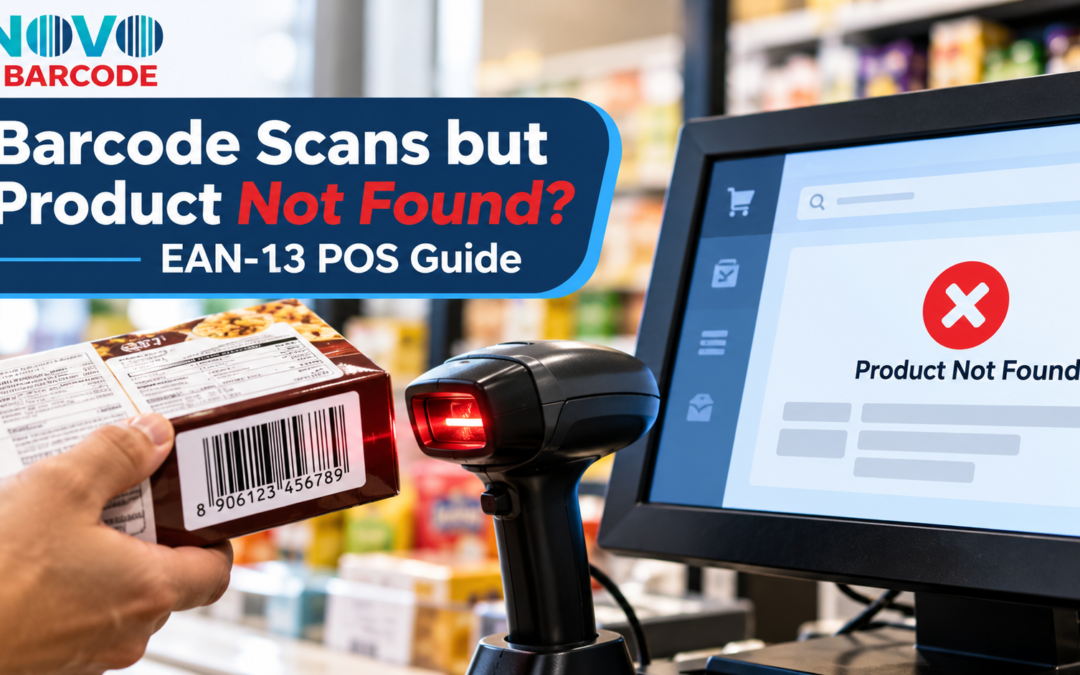
Why Your EAN-13 Barcode Scans but the Product Does Not Appear at Billing
The cashier scans your new product. The scanner beeps. Thirteen digits appear on the billing screen. But instead of the product name and selling price, the system displays “Item not found.”
For a manufacturer seeing this happen for the first time, the immediate suspicion is usually the barcode. Perhaps the number is invalid, the label was printed incorrectly, or the supplier provided something that does not work. Yet the scanner has already performed its first job: it has read the symbol and sent the number to the billing software. What may be missing is the next step—the retailer’s product record.
This distinction matters when launching packaged food, cosmetics, garments or any other retail product. A printed EAN-13 symbol does not, by itself, tell every shop in India what your product is called or what that shop should charge for it. Those details normally come from the store’s own product database or a connected catalogue.
First, Understand What Actually Happens at Checkout
Think of the barcode as an identifier, not a miniature product catalogue. The scanner captures the number encoded in the symbol. The point-of-sale (POS) application then searches for that number in a product record it can access. If a matching record exists and is configured correctly, the software can display the product description and price. If it does not, the scan can be technically successful while the sale still cannot proceed normally.
Scanner reads the EAN-13 symbol and sends its digits.
POS searches the store’s product database or connected catalogue.
Matching record supplies the name, selling price and other configured fields.
A Practical Example: A New Packaged Food Product
Imagine a small manufacturer launching a 200 g packet of roasted snacks. The packaging designer has placed an EAN-13 barcode on the back panel, the printed sample scans cleanly, and the manufacturer has prepared a carton for a local retailer.
At the shop, the cashier scans the packet. The number appears, but no item description or price follows. The store manager checks the POS inventory and finds that this new product has never been entered. The solution is not necessarily to print another barcode. The retailer first needs to create or import the product record, associate the correct EAN-13 number with it, and configure the store’s price and tax details as applicable.
Now consider a second shop. It may already have the item in its own system, so the very same barcode works there immediately. The difference is the data available to each shop, not the lines printed on the packet.
Item not found
Number read; no matching active product record.
Roasted Snack, 200 g
Illustrative local selling price: ₹85
Illustrative checkout screen only. The sample number and price are not a NovoBarcode product assignment or a live retail record.
Five Reasons a Readable Barcode Still Produces “Product Not Found”
The retailer has not yet created the item in its POS catalogue.
A typing error or an extra/missing digit prevents an exact match.
The record exists but is disabled, pending approval or unavailable at that location.
Head-office data may not yet have reached the branch or offline terminal.
The number is attached to the wrong variant, pack size or internal product entry.
There can also be technical scanner issues, including a scanner adding unwanted characters or the software expecting a different input format. But where the complete intended number is captured correctly, database matching should be investigated before blaming print quality.
How to Tell a Scanning Problem from a Product-Database Problem
Ask the retailer to look at what the terminal actually receives. A blank screen, incomplete digits or inconsistent results across repeated scans point towards scanning, print or input configuration. A consistently captured 13-digit number followed by “unknown item” more strongly suggests a lookup or product-onboarding problem.
| What you observe | Likely area to investigate | Useful next check |
|---|---|---|
| Scanner does not read the symbol | Printing, contrast, damage, size, placement or scanner compatibility | Test another scanner and inspect the physical label. |
| Digits appear, but product is not found | POS item record or matching logic | Search the catalogue for the exact scanned number. |
| Wrong product name appears | Incorrect database mapping or number assignment | Compare the scanned digits with the item master. |
| Correct item but wrong price | Store pricing or promotional configuration | Review the retailer’s price record, not the barcode artwork. |
| Works at one branch, fails at another | Branch catalogue, synchronisation or activation | Compare the two stores’ item records. |
If the symbol itself fails to read, follow the separate troubleshooting steps in our barcode-not-scanning guide. That is a different problem from a clean scan returning no product.
What Information Should a Manufacturer Give the Retailer?
Before sending stock to a new retailer, prepare a clear product-information sheet. It reduces avoidable emails and makes it easier for the buyer or inventory team to set up the item correctly. Exact fields depend on the retailer and its systems, but a practical starting point includes:
- Product and brand name as printed on the package.
- Correct EAN-13 number for the particular sellable item.
- Pack size, net quantity, colour, flavour or other distinguishing variant.
- Relevant tax classification and tax information, where applicable.
- MRP and any other pricing information the retailer requests; the store’s selling price may be configured separately.
- Product images, category, supplier details and any retailer-specific onboarding documents.
Why the Same Product Can Have Different Selling Prices
A product’s EAN-13 number is not a price tag. A retailer may apply its own permitted selling price, promotional discount or branch-specific pricing while using the same product identifier. The barcode remains the lookup key; the billing system determines what price to show according to its configured records and applicable rules.
This also explains why changing a price normally does not require printing a new EAN-13 barcode. A genuinely different sellable product or packaging configuration may need separate identification, but an ordinary price update is a database matter. If you are planning multiple pack sizes, read how many barcodes your product range may need.
Does Scanning an EAN-13 Barcode Automatically Show the Product Online?
Not necessarily. Some mobile apps search their own databases or third-party catalogues after reading a barcode. If that catalogue has no matching record, the app may show only the digits—or nothing useful. That does not, on its own, prove that the EAN-13 symbol cannot be scanned or that the number is invalid.
Likewise, checking whether the printed digits have a valid EAN-13 check digit is not the same as proving ownership, retailer acceptance, product registration or inclusion in a public product database. Those are separate questions. For a more focused explanation, see our EAN-13 barcode verification guide.
What About Amazon, Flipkart and Other Marketplaces?
Marketplaces do not all operate like a local shop’s POS. Product listing may involve catalogue matching, seller verification, brand rules and product identifier policies. A number that scans successfully is not automatically accepted for a marketplace listing.
Before choosing or submitting an identifier, review the current requirements of the marketplace and product category. Some channels require GS1-issued GTINs or supporting documentation. NovoBarcode is an independent EAN-13 barcode service; purchasing an EAN-13 number from an independent supplier should not be presented as a guarantee of acceptance by every retailer or marketplace.
For broader launch preparation, see our guide to preparing a new product for sale in India.
A Seven-Step Checklist Before Your First Retail Delivery
Ask each target retailer what identifier and onboarding documents it requires.
List each distinct sellable product, size, colour and pack configuration.
Check that the intended EAN-13 digits match the correct product record.
Provide the retailer with accurate descriptions, pack sizes and required commercial details.
Follow suitable EAN-13 size and placement guidance.
Check the full number on a suitable scanner, not only the design file.
Ask the retailer to verify the item name and price before the first sale.
What to Do When the Store Calls and Says Your Barcode Does Not Work
Do not immediately order new numbers or reprint all your packaging. Ask the store for the exact error message and, if possible, the digits displayed after scanning. Compare them character by character with the number assigned to the product. If the scan is accurate, request a check of the retailer’s item master, branch activation and synchronisation. If the digits are wrong or inconsistent, inspect the printed label and scanner setup.
This small diagnostic step can prevent a costly mistake: treating a missing database record as a defective barcode. It also gives the retailer’s technical team a much clearer starting point than the broad statement “barcode not working.”
Frequently Asked Questions
Why does my barcode scan but not show the product name?
The scanner may have captured the number correctly, but the POS system or lookup app may not have a matching product record. Check the exact scanned digits and the catalogue entry.
Is the product price stored inside an EAN-13 barcode?
No. An ordinary EAN-13 product barcode represents an identification number. The retailer’s system supplies the configured product details and selling price.
Will a valid EAN-13 number work at every retail shop?
Not automatically. The retailer may need to onboard the item, and some sales channels impose additional identifier or documentation requirements.
Do I need another barcode if the shop changes the price?
An ordinary price change generally does not require a new product identifier. The retailer updates its pricing record. Different products or variants may require different identification.
Why does my barcode work in one shop but not another?
Each shop or branch may have a different product database, approval status or synchronisation state. Compare the item records before changing the printed barcode.
Does scanning successfully prove that a barcode is registered with GS1?
No. Successful scanning, check-digit validity, product database inclusion, licensing and GS1 allocation are separate matters.
Conclusion: A Readable Barcode Is Only Half of a Successful Checkout
For a product owner, the beep at checkout can feel like the final test. It is not. That sound tells you that a scanner has recognised a symbol; it does not tell you whether the store knows the product, has linked the correct number to the correct variant, or has entered a selling price.
The distinction is worth understanding before the first carton leaves your factory. If the barcode is readable but the item is unknown, investigate the product record and retailer onboarding. If the digits cannot be read reliably, investigate printing and placement. If a marketplace rejects the number, investigate that channel’s identifier policies. Three different problems need three different solutions—and replacing the barcode indiscriminately can make matters worse.
Your next action: Prepare a simple product master sheet containing each sellable item and its corresponding EAN-13 number. Confirm your target retailer’s acceptance requirements, ask for a POS lookup test, and scan one finished package before printing or shipping in volume. This sequence gives you a far better chance of finding problems while they are still inexpensive to fix.
Preparing a Product for Retail Sale?
If your sales channel accepts independently supplied EAN-13 barcodes and you need product numbers for your range, review NovoBarcode’s EAN-13 options before finalising packaging. Check the retailer’s requirements first, then match each number carefully to the intended product.
Explore EAN-13 barcode options →Continue Reading: EAN-13 Guides
Explore practical guides for product identification, packaging and retail preparation.
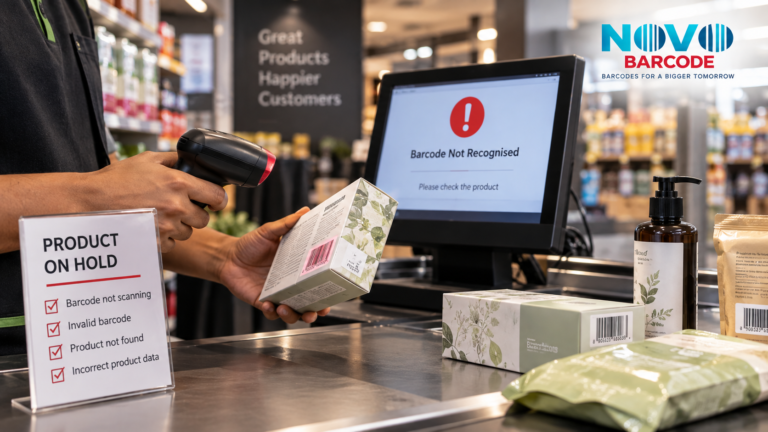 Why Retailers Reject Products With Barcode Problems | India Guide
Read guide →
Why Retailers Reject Products With Barcode Problems | India Guide
Read guide →
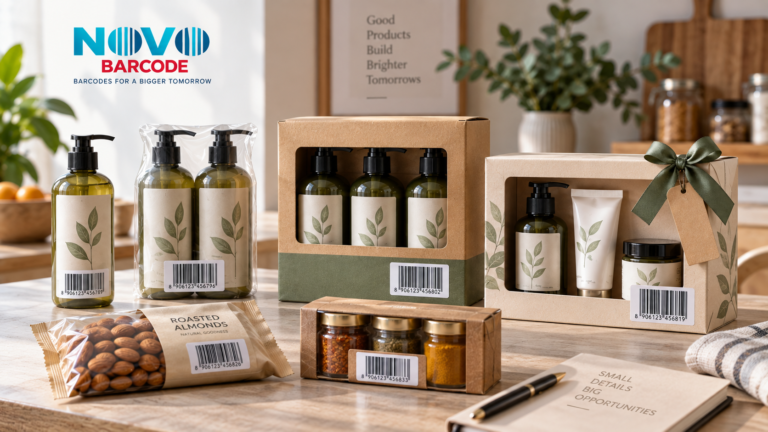 Barcode for Multipack Products in India: Do You Need a New One?
Read guide →
Barcode for Multipack Products in India: Do You Need a New One?
Read guide →
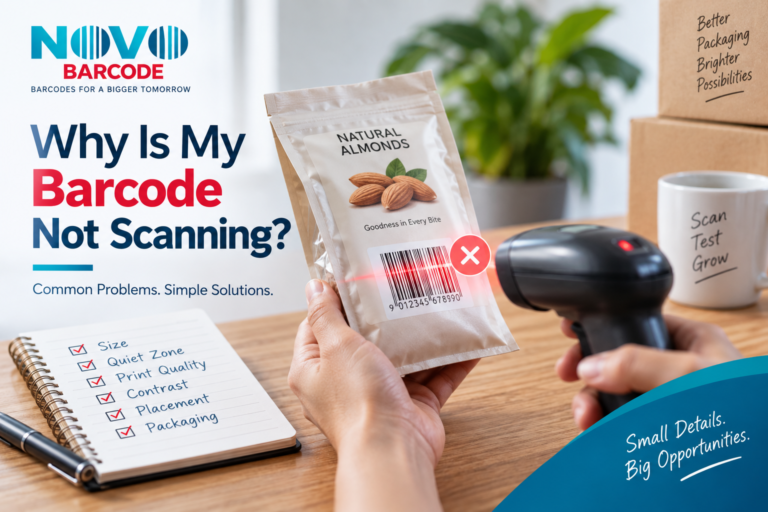 Why Is My Barcode Not Scanning? 11 Common EAN-13 Problems & Solutions
Read guide →
Why Is My Barcode Not Scanning? 11 Common EAN-13 Problems & Solutions
Read guide →
 When Do You Need a New Barcode? Product Variant Guide for India 2026-2027
Read guide →
When Do You Need a New Barcode? Product Variant Guide for India 2026-2027
Read guide →