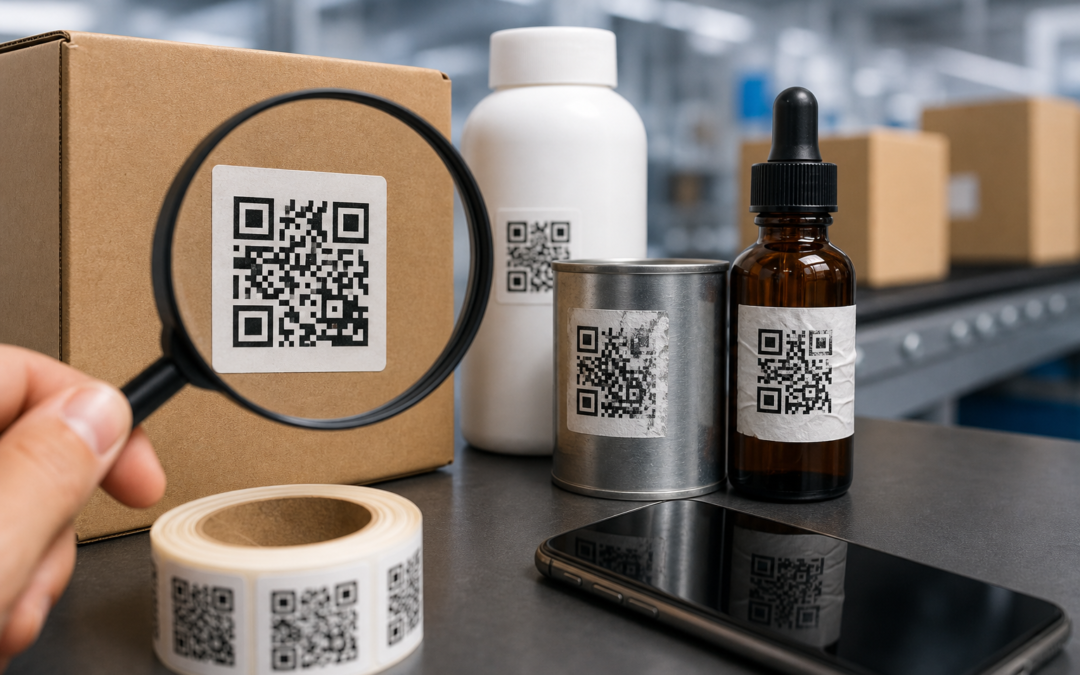
For manufacturers and brands in Kolkata and across West Bengal, deciding to integrate QR codes on product labels can be a strategic move to enhance customer engagement and streamline information delivery. However, the effectiveness of QR codes depends heavily on thoughtful design, precise printing, and ongoing digital management tailored to local market conditions. This guide outlines common pitfalls and practical checks to help ensure your product labels provide a reliable and user-friendly scanning experience for your customers.
The QR code may look clear in the artwork file, and the destination page may open correctly on the designer’s phone. Yet, after thousands of packs are printed, issues such as compression, placement across folds, or incorrect linking can surface, undermining the customer experience.
Such problems are avoidable. A QR code on a product label is more than a graphic; it is a physical gateway to a digital experience. Its reliability depends on the code design, the printed surface, scanning conditions, and the webpage it links to.
For Indian manufacturers, private-label brands, retailers, and startups—particularly those operating in Kolkata and West Bengal—the key question is not just “Does this QR code scan?” but rather: Will the printed code scan easily, open the correct mobile page, and remain useful throughout the label’s lifecycle?
1. Choosing the wrong destination before creating the QR code
Many label issues start before the artwork is finalized. Creating a QR code without a clear decision on the customer’s post-scan destination can lead to codes pointing to generic homepages, temporary campaigns, or unrelated product pages.
A product label should give the scanner a clear reason to engage. Depending on the product, the destination might be:
- Product instructions or usage guidance
- A warranty or registration page
- Ingredients, specifications, or detailed product information
- Recipes or serving suggestions
- A support page or demonstration video
- A relevant offer or feedback form
For example, a QR code on a packaged spice label in West Bengal should ideally link directly to usage instructions or recipes rather than a generic homepage. Similarly, a code on an electronic accessory might best open setup instructions specific to that model.
Preventive check: Decide the scan purpose, product variant, and intended customer action before generating the code. Test the destination on a mobile device to confirm it matches the label’s promise.
2. Assuming every QR code can be edited after printing
Static and dynamic QR codes appear similar but differ in post-print flexibility. Static QR codes embed the destination URL directly; if the URL changes, the printed code cannot be updated without reprinting or redirecting. Dynamic QR codes use managed links that can be updated without changing the printed pattern, provided the service remains active.
For product packaging that may stay in circulation for months or years, dynamic QR codes offer adaptability. However, businesses must maintain account access, monitor renewal terms, and ensure the destination remains functional.
Preventive check: Document the QR code type, permanent link, current destination, account ownership, and packaging version in a product master sheet. Avoid relying on temporary personnel for account access.
3. Using a low-resolution screenshot or copied image
Screenshots or copied images may look sharp on screens but can become blurred or pixelated when printed at label size. Always use the original print-ready file from the QR code generator, preferably a vector format like SVG for scalability, or a high-resolution raster file prepared for the final print size.
Do not redraw QR modules manually or repeatedly export and re-import images without quality checks, as this can degrade sharpness.
Preventive check: Compare the placed file in the final PDF with the original artwork. Confirm the destination URL is unchanged and the code is not a preview or screenshot.
4. Making the QR code too small
QR codes are often reduced to fit crowded labels with branding, product info, legal text, and decorative elements. While they may scan easily under ideal conditions, customers may struggle under typical retail lighting or when handling the product.
There is no universal size; appropriate dimensions depend on print quality, scanning distance, camera type, material, lighting, and data complexity. Denser codes from longer URLs usually require more space.
For products sold in Kolkata, Howrah, or other parts of West Bengal, labels may be folded or stored in varied lighting, so testing only on a clean desk is insufficient.
Decision rule: If customers must hold the product very close to scan, reconsider the label design. Reserve adequate space early rather than shrinking the code later.
5. Removing the clear margin around the QR code
The blank area around a QR code, known as the quiet zone or clear margin, is essential. It separates the code from nearby text, borders, colors, and graphics, allowing cameras to identify edges accurately.
Common errors include placing the code too close to borders or text, cutting stickers tightly, or using colored backgrounds that reduce effective separation.
Even logos placed near the code can reduce the margin, affecting scan reliability.
Preventive check: Maintain a clean, uninterrupted margin on all sides. Review the final trimmed label, not just the artwork sheet.
6. Stretching or compressing the QR pattern
QR codes consist of square modules arranged precisely. Uneven resizing distorts these squares into rectangles, making scanning difficult.
This often occurs when designers drag image sides independently or use automatic fill settings in design software.
Unlike decorative images, QR codes must preserve aspect ratio. If space is limited, adjust the layout rather than distorting the code.
Preventive check: Lock aspect ratio before resizing and inspect the print file at high magnification to ensure modules remain square and clear.
7. Choosing low contrast or unsuitable colours
Brand colors may not always provide sufficient contrast for scanning. Pale greys on white, dark blues on black, or codes printed over photographs can look stylish but scan poorly.
Dark codes on plain, light, non-reflective backgrounds are generally more reliable. Other color combinations may work but require testing on actual label materials rather than screen previews.
Transparent labels add complexity since the background changes with the product surface, potentially impairing scan performance.
Preventive check: Test the exact ink, label stock, laminate, and background color. Avoid relying solely on designer screens.
8. Adding a logo or decoration inside the code
Embedding a logo in the QR code center can be effective if done carefully, but it reduces the clean scanning area and tolerance for print defects. Risks increase with small, dense, low-contrast codes or difficult surfaces.
Decorative patterns or images behind the code can confuse scanning devices despite appearing clear to the human eye.
Branding should facilitate scanning, not hinder it. If including a logo, keep it small, maintain the clear margin, and test physical samples on multiple devices.
9. Placing the code on a difficult packaging surface
QR codes behave differently depending on the packaging surface—flat cartons, glossy pouches, curved bottles, or textured labels affect camera angles, reflections, and shape.
Special attention is needed for:
- Curved bottles, jars, and tubes
- Flexible pouches that wrinkle during filling or handling
- Glossy, metallic, or laminated finishes
- Textured or uneven surfaces
- Seams, folds, corners, and heat-sealed areas
- Transparent labels over varying backgrounds
- Areas prone to scratches during transport
For instance, a QR code across a curved bottle side may be hard to capture fully, and a code on a pouch may distort after sealing.
Preventive check: Select the flattest, most accessible panel and test the code after filling, folding, sealing, or assembly.
10. Testing only the digital proof
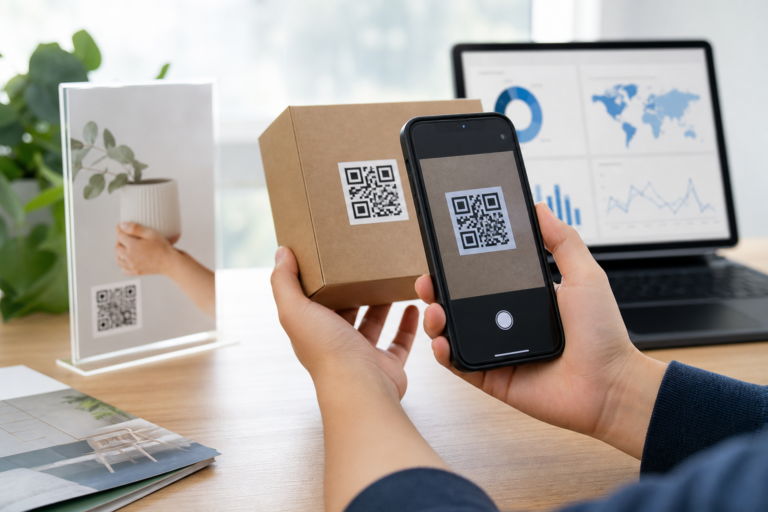
A digital preview confirms code generation but does not guarantee print performance. Printing can introduce blur, color shifts, ink spread, trimming errors, and scaling issues.
Before mass production, create a physical proof using the intended materials, finish, size, and printing method. Test the full scanning journey:
- Scan the code on the finished sample.
- Confirm it opens the correct product page.
- Check page loading on mobile data and Wi-Fi.
- Test multiple phone models if possible.
- Scan under typical indoor lighting and realistic distances.
- Apply any folding, sealing, or assembly as in production.
- Scan again post-assembly.
While phone scans are useful initial checks, they do not guarantee performance on all devices or conditions. For important retail or distribution, confirm if formal QR or print verification is required.
11. Forgetting the customer instruction
Printing a QR code without explaining its purpose may lead to customer neglect, especially if multiple codes or claims compete for attention.
Include brief instructions like “Scan for usage instructions,” “Scan for product registration,” or “Scan for recipes.” Ensure wording matches the destination content without overpromising.
The landing page should be mobile-friendly, avoiding slow load times, login barriers, broken files, or generic homepages requiring extra navigation.
12. Using one QR code for every product and label version
Using a single QR code across multiple product variants may simplify printing but complicates tracking and customer support. For example, scans on 100 g and 500 g packs may be indistinguishable.
Separate codes help when destinations, instructions, languages, campaigns, or variants differ and aid in spotting packaging errors before large runs.
This does not require a new code for every minor design change but should be considered when information affects practical decisions like support or market targeting.
Maintain a simple record of code name, printed product, destination, owner, creation date, and status to prevent artwork mix-ups.
QR code versus EAN-13: another label mistake
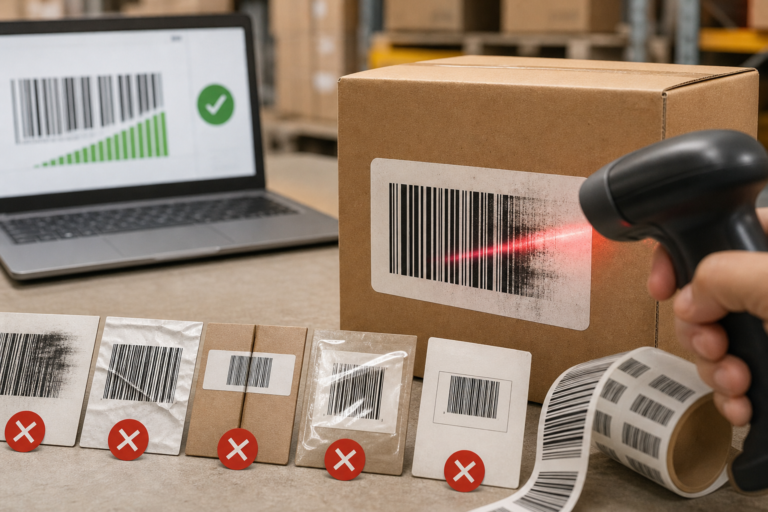
QR codes and EAN-13 barcodes often appear together but serve different functions. QR codes link customers to digital content, while EAN-13 barcodes identify products for retail and inventory systems.
A QR code that scans on a phone is not a substitute for an EAN-13 barcode required by retailers or marketplaces. Conversely, EAN-13 barcodes do not provide direct access to instructions or campaigns.
Before finalizing labels, clarify the purpose and audience for each code. If both are needed, allocate sufficient space and avoid placing them too close to prevent scanning interference.
Indian manufacturers can find detailed guidance on using EAN-13 barcodes alongside QR codes in the comparison of EAN-13 Barcode vs QR Code and learn best practices for printing EAN-13 barcodes from Barcode for Product Labels: How to Print and Use It Correctly.
A practical pre-print approval process
Before approving QR-enabled product labels, follow this sequence:
- Define the purpose: specify what the customer should receive after scanning.
- Confirm the destination: verify product variant, language, and mobile experience.
- Choose static or dynamic deliberately: consider label lifespan and potential link changes.
- Document ownership: secure account access, permanent links, and code records under business control.
- Prepare the artwork: use original print-ready files, preserve proportions, and maintain clear margins.
- Reserve suitable space: avoid folds, seams, curves, busy backgrounds, and reflective surfaces.
- Print a physical sample: use intended label stock, finish, size, and printing method.
- Test after assembly: scan the finished product under typical customer conditions.
- Approve the correct version: cross-check QR file, destination, and product master sheet before mass printing.
Conclusion
Common QR code printing mistakes often stem from gaps in coordinating packaging design, print production, product data, and digital content. Even technically valid QR codes may fail in practice if too small, distorted, crowded, reflective, damaged, or incorrectly linked.
To enhance reliability, assign a clear purpose to each QR code, select static or dynamic types based on expected label lifespan, and maintain controlled ownership of artwork and destinations. Crucially, test physical packages rather than relying solely on digital previews.
Before approving your next label for print, produce a high-quality physical sample, scan it after final assembly, and verify results against product records. This careful approval process can help reduce costly errors and improve QR code effectiveness in the diverse retail environments of Kolkata and West Bengal.
Continue Reading: EAN-13 Guides
Explore practical guides for product identification, packaging and retail preparation.